Showing posts with label mvc 4. Show all posts

Thursday, 21 November 2013

Model in MVC in Simple Way

Model in MVC in Simple Way

In MVC ‘M’ stands for Model. In MVC model is used to create logic class for any MVC application. We can put all our project logic called business logic in model in MVC.

In this example I am creating model in a simple way. In my next article I will discuss model with strongly view.

For this example I am taking controller name Home and method name is Index and create view for this index method.

To add model Right click on model folder from solution explorer ->go to add->class


Figure 1

Give a proper name to the class. I have given the name EmployeeData. In this class I have created some variable to store data. The code of this class is as follows:-

using System;
using System.Collections.Generic;
using System.Linq;
using System.Web;

namespace MvcApplication5.Models
{
    public class EmployeeData
    {
        public int EmpId;
        public string EmpName;
        public string EmpDept;
        public int salary;
    }
}

Tuesday, 19 November 2013

Pass Data from Controller to View using ViewBag in MVC

Pass Data from Controller to View using ViewBag in MVC

In my last article I explain how to send data from view to controller using ViewData. In this article we will discuss how we can send data using ViewBag. ViewBag used dynamic property which introduced in C# 4.0 and it is typed object which decide type at runtime. This is the reason we didn't get compile time error.

It is actually maintain a dynamic ViewData Dictionary internally so you can say that it’s a wrapper around ViewData.

For example:-

Create a controller name Home and create view name Index.

In this view create a list of type string in which stores the Department Name.

using System;
using System.Collections.Generic;
using System.Linq;
using System.Web;
using System.Web.Mvc;

namespace MvcApplication5.Controllers
{
    public class HomeController : Controller
    {
      
        public ActionResult Index()
        {
            List<string> dept = new List<string>()
            {"HR","Sales","Developer"};

            ViewBag.dept_name = dept;
            return View();
        }

    }
}

Pass data from Controller to View using ViewData in MVC

Pass data from Controller to View using ViewData in MVC

ViewData is used to access data from controller to view. ViewData stores data as key-value format. ViewData type is  ViewDataDictionary. Internal declaration of ViewData is:-

public ViewDataDictionary ViewData { get; set; }

Syntax of ViewData

ViewData[“key”]=value;

ViewData is dictionary type which stores data in object format.  So we need to perform type casting at the time of data retrieval.

For example:-

Create a controller name Home and create view name Index.

In this view create a list of type string in which stores the Department Name.

using System;
using System.Collections.Generic;
using System.Linq;
using System.Web;
using System.Web.Mvc;

namespace MvcApplication5.Controllers
{
    public class HomeController : Controller
    {
      
        public ActionResult Index()
        {
            List<string> dept = new List<string>()
            {"HR","Sales","Developer"};

            ViewData["dept_name"] = dept;
            return View();
        }

    }
}

Friday, 8 November 2013

If-else statement and Looping in Razor in MVC


If-else statement and Looping in Razor

In my last article I discussed how we can use programming statement in Razor. In my last article we declared some variable and perform some calculation on it. In this tutorial I am going to discuss how we can use if-else statement and looping.

If-Else Statement in Razor

As we declared variable using @, similarly we can declare if else statement using @.

Note: - I am taking previous article code as an example. If you are directly reading it then kindly go through last article first.

For example:-

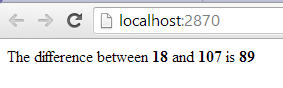
In this example I am taking two numbers and calculating the difference between them.

@{
    Layout = null;
}

<!DOCTYPE html>

<html>
<head>
    <meta name="viewport" content="width=device-width" />
    <title>Index</title>
</head>
<body>
  
   @{
      
       int num1 = 18, num2 = 107;
       int num3;
      
    }

  @if (num1 > num2)
  {

      num3 = num1 - num2;

  }
  else
  {

      num3 = num2 - num1;
  }

    The difference between <b> @num1</b> and <b>@num2</b> is <b>@num3</b>

</body>
</html>

The output of this code


Figure 1

Thursday, 7 November 2013

Get Version of MVC through Code


Get Version of MVC through Code

If we need to gets the version of the MVC application using code or if we want to print the Version of MVC then we can show it using code.

For Example:-

Create a Controller name home and Create View name Index and add the following code:-

Home Controller/Index

using System;
using System.Collections.Generic;
using System.Linq;
using System.Web;
using System.Web.Mvc;

namespace MvcApplication1.Controllers
{
    public class HomeController : Controller
    {
        public ActionResult Index()
        {
            Response.Write("Current Version of MVC is= "+typeof(Controller).Assembly.GetName().Version.ToString());
            return View();
        }

    }
}

The output of this code


Figure 1


In this way using this code we can show version of MVC.

Wednesday, 6 November 2013

Fetch values from View in Controller using Request


Fetch values from View in Controller using Request

In this article I will explain how to fetch data from controls which are on View to Controller using Request.

In my last article I explain the same example using FormCollection. Request objects work with both GET and POST Method.

For Example:-

In this example I have created the Home Controller and in this I have created index view.

In this view I have created the following form in which I am taking first name and last name from the user.  For each control I have set the property name. This property I will use in form collection to fetch the data.

@{
    Layout = null;
}

<!DOCTYPE html>

<html>
<head>
    <meta name="viewport" content="width=device-width" />
    <title>Index</title>
</head>
<body>
    <form method="get" action="Welcome\Index">
        <table>
            <tr>
                <td>Enter First Name</td>
                <td><input type="text" id="fname_id" name="fname_name" /></td>
            </tr>
             <tr>
                <td>Enter Last Name</td>
                <td><input type="text" id="lname_id" name="lname_name" /></td>
            </tr>
             <tr>
                <td></td>
                <td><input type="submit"  /></td>
            </tr>
        </table>
    </form>
</body>
</html>

In action I have set the welcome controller and index view. So I have created welcome controller and create index view.