Showing posts with label MVC tutorial. Show all posts

Friday, 10 January 2014

Scaffolding Create Option using LINQ in MVC

Scaffolding Create Option using LINQ in MVC

In my last article I described how to create List using Scaffolding. In this article I will discuss how to use Scaffolding Create option. If you have seen the output of LIST example code then you can see that there is link on the page for Create New.


Figure 1

Thursday, 9 January 2014

Scaffolding using LINQ in MVC

Scaffolding using LINQ in MVC
Scaffolding is the option in MVC which provide the facility to generate automatic code page for certain functionality like List, insert, update, delete etc. It is the major tool which provides quick way to generate code.

In this example I am using LINQ to generate back-end part. In my next article series I will show the same example using Entity Framework.

If you are new to LINQ then kindly first study the following link then studies this article.


I am using following table to generate scaffolding option:-

Monday, 2 December 2013

Concept of Nullable type variable with UpdateModel

Concept of Nullable type variable with UpdateModel

In my last article I discussed how we can fetch data from view to controller using UpdateModel in MVC. In last example we use UpdateModel method where we pass model object i.e. your techaltum class. I am taking the same example in this article.
We have seen that when we click on button our data posted in model and using this model we insert this data into database.

Now I am again executing this example and this time I am not filling any data and submitting the form.

Friday, 29 November 2013

Implementation of UpdateModel in MVC

Implementation of UpdateModel in MVC

In my last article I explained that how we can fetch data from view to controller using model and I fetched the data from view to controller using model and save this data into database. I am using the same example in this article.

We can also use UpdateModel method to fetch data from view to controller. UpdateModel is the method which is generics type and takes parameter of model type. This method fills the value to the property of the model class.

Note:- I am not showing the DAO Class code in this article. if you want to see the DAO class code then kindly click here.

Wednesday, 27 November 2013

Pass data from View to controller using Model in MVC


Pass data from View to controller using Model in MVC

In my last article series I explained how we can pass data from view to controller using Request, FormCollection etc.

In this article I am explaining how you can access data from view to controller using Model.

In my last article I explained how to insert data in database using Ado.net. I am taking the same example for explain this concept. In last article we take data from view to controller using Request object.

In my article series I also explained the HTML Helper class in which we used method to generate the HTML control. For example to generate the textbox we use the following method:-

Insert Data in MVC using Ado.net and DAO class

Insert Data in MVC using Ado.net and  DAO class

In this article I am going to explain, how we can insert data using DAO class in MVC. In this example I am using ADO.net,  later on I will use Entity Framework. In this article I will use Request object to fetch data from view to controller. If you are not aware with Request object kindly first click here.

I have created the following table in Database for this example:-

create table stu_record(id int primary key identity(1,1) , fname varchar(100),
lname varchar(100), course varchar(100), fees int, doj datetime)


Sunday, 24 November 2013

Implementation of Master Page in MVC using Razor

Implementation of Master Page in MVC using Razor

In asp.net we all are familiar with Master page. Master page is used to create a common layout for the web based application.

In Master page we use Content Place Holder where we want to place other pages content.

Similarly we use the concept of Master page in MVC. We create a View which will be common to every page. Here we use @RenderBody() method instead of Content Place Holder.

For example:-

First of all add MVC application using Visual Studio->File->Project->MVC 4
Now go to view folder and add folder in which you can add your view which will work like master page.


Figure 1

Now right click to this folder and add view and give it a proper name. Now create your complete Master page. And the place which you want to leave for other pages content, add method @RenderBody().

Saturday, 23 November 2013

Implementation of CSS in HTML Helper in MVC


Implementation of CSS in HTML Helper in MVC

If we see the all controls which we created using HTML Helper, they all are overloaded. There is overload method in which we pass HtmlAttribute of type object. In this object we pass the object in which we define the style of control.

For example:-

@Html.Label("Enter your First name", new { style = "background-color:green; color:white; font-family:Arial" })

Similarly we can pass the CSS style to each control.
If we want to pass CSS class to any Control then we can use this code in following way:-
First create the CSS file. I added the CSS file name TechAltum in which I added one CSS code for Label

.LableStyle { background-color:green; color:white; font-family:Arial
}

Now pass this class code to the control

DropDownList in HTML Helper in MVC


DropDownList in HTML Helper in MVC

It is little bit tricky to create dropdown list in MVC using HTML Helper class. As we know that in general dropdown list we show data in Text and Value format.

Similarly here we have to create a class which contains the property for Text and Value.

For Example:-

In this example I am creating dropdown list for countries. In which I am taking CID as a value field and CName as a Text Field.

Create controller name home and method index and create view for index method.

To add properties, add class and give it name country and declare two properties CID and CName.

using System;
using System.Collections.Generic;
using System.Linq;
using System.Web;

namespace MvcApplication7
{
    public class country
    {
        public int CID { get; set; }
        public string CName { get; set; }
    }
}

Now go to your index view and create a list of type country and add Items in this list.

ActionLink in HTML Helper Class in MVC

ActionLink in HTML Helper Class in MVC

ActionLink is used to generate hyperlink in MVC using HTML Helper Class.

For Example:-

@Html.ActionLink("Login","Welcome")

In this example Login is the Text which shows on link and Welcome is the view on which it will redirected when we click on this actionlink.

Actionlink method also allows us to bind any data on this link. 
We can access this data on redirected page.

@Html.ActionLink("Login", "Welcome", new { UserId = "isha123" })

In this example I bound data using name UserId. I can access this id on Welcome view as a parameter.

public ActionResult Welcome(string UserId)
        {
            Response.Write("Hello " + UserId);

            return View();
        }

In this way we can bind data on this actionlink which we can access on the redirected page.


HTML Helper Class in Razor View Engine in MVC


HTML Helper Class in Razor View Engine in MVC
(Radio Button, Password, TextArea)

In previous article I discussed about the HTML Helper class and we created some control using this class. In this article I am continuing this topic and will discuss about the others controls and continue with the previous example which I used in my last article.

Note:-Before reading this article kindly goes through the previous article.

RadioButton

This HTML Helper method is used to create Radio Button. This method returns radio button input element. In this method we pass id and name to the radio button method as a first parameter. In second value we pass the value which will be accessed when form submitted.

For example:-

@Html.RadioButton("rgender","Male")

In this example rgender is id and name for this control and Male is the value which accessed on form submitted.
If you want to by default select any value then you can also pass third parameter as true which represent the value as selected.

For example:-

@Html.RadioButton("rgender","Male",true)

Password

This HTML Helper method is used to create TextBox having password type. In this method we pass the id and name to this control.

For example:-

@Html.Password("pass")
In this example pass is id and name in this example.

Friday, 22 November 2013

HTML Helper class in Razor View Engine

HTML Helper class in Razor View Engine
(BeginForm,Label,Texbox,Submit button)

In MVC, many helper methods are added to create HTML control perfectly. As in Web Application we use control class to create control in asp.net, here we use HTML helper classes. But these methods are very light weight as they not maintain any viewstate and return as string.

Methods in HTML Helper Classes:-

Begin Form

As in HTML we use Form method in which we assign action, method etc here we use BeginForm to implement this task.

Syntax for Begin Form:-

@using (Html.BeginForm("Index", "Home", FormMethod.Post))
    {


    }

In this method index is an action name, home is a controller name and formMethod Enum is used to set method which we already discussed in my previous article. We add all control in this opening and closing braces.

Label

Label is used to show data on screen

Syntax of Label

@Html.Label("Enter your First Name")

It will simply create a label which shows the message

Textbox

Textbox method is used to create a textbox in screen. We pass id and name as string to this method.

For example:-

@Html.TextBox("fname")
In this method fname is worked as id and name for this control.

Thursday, 21 November 2013

Use of Model using strongly view in MVC

Use of Model using strongly view in MVC

In my last article I discussed model in a simply way. In this example I am going to explain model using strongly view.

For this example I am taking the previous example in which I have created the model class named EmployeeData.

In this example after creating the model class, create view where you want to use this model. So go to index method->right click on it->add view.


Figure 1

In this view check the option creates a strongly-typed view and selects your model from dropdownlist.

Note: - sometime it happened that model class do not show in dropdownlist. In this situation kindly build your project and then again try.

After adding this view you can see that it automatically added @model object for this 
class which you provided in strongly view.

Now create the object of this class in index method, assign data to the variable and then pass this object to the view.

Model in MVC in Simple Way

Model in MVC in Simple Way

In MVC ‘M’ stands for Model. In MVC model is used to create logic class for any MVC application. We can put all our project logic called business logic in model in MVC.

In this example I am creating model in a simple way. In my next article I will discuss model with strongly view.

For this example I am taking controller name Home and method name is Index and create view for this index method.

To add model Right click on model folder from solution explorer ->go to add->class


Figure 1

Give a proper name to the class. I have given the name EmployeeData. In this class I have created some variable to store data. The code of this class is as follows:-

using System;
using System.Collections.Generic;
using System.Linq;
using System.Web;

namespace MvcApplication5.Models
{
    public class EmployeeData
    {
        public int EmpId;
        public string EmpName;
        public string EmpDept;
        public int salary;
    }
}

Friday, 8 November 2013

If-else statement and Looping in Razor in MVC


If-else statement and Looping in Razor

In my last article I discussed how we can use programming statement in Razor. In my last article we declared some variable and perform some calculation on it. In this tutorial I am going to discuss how we can use if-else statement and looping.

If-Else Statement in Razor

As we declared variable using @, similarly we can declare if else statement using @.

Note: - I am taking previous article code as an example. If you are directly reading it then kindly go through last article first.

For example:-

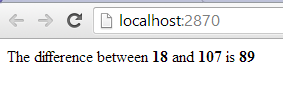
In this example I am taking two numbers and calculating the difference between them.

@{
    Layout = null;
}

<!DOCTYPE html>

<html>
<head>
    <meta name="viewport" content="width=device-width" />
    <title>Index</title>
</head>
<body>
  
   @{
      
       int num1 = 18, num2 = 107;
       int num3;
      
    }

  @if (num1 > num2)
  {

      num3 = num1 - num2;

  }
  else
  {

      num3 = num2 - num1;
  }

    The difference between <b> @num1</b> and <b>@num2</b> is <b>@num3</b>

</body>
</html>

The output of this code


Figure 1